Administration
Teams and roles
A team decides who reaches which projects, and its roles decide what they can do there. Every organization starts with two built-in teams. You create your own teams when people need a different role or a narrower set of projects.
Built-in teams
| Team | Role | Projects |
|---|---|---|
| Admins | Admin | All projects, including future ones |
| Members | Member | All projects, including future ones |
The person who creates the organization is on Admins. You can add people to and remove people from both teams. You cannot change their roles or projects, rename them or delete them: the team page says “This is a Spice Labs managed team. You can add or remove users, but roles and projects are managed automatically.”
Roles
Topographer has three roles: Admin, Member and Viewer. You cannot create roles or change what a role grants. To give someone a different level of access, put them on a team with the role you want.
| Admin | Member | Viewer | |
|---|---|---|---|
| Open projects their teams reach: portfolios, data health, surveys, reports, API reference | Yes | Yes | Yes |
| Read the activity log, the projects list and the users list | Yes | Yes | Yes |
| Create API tokens and Spice Passes, set criticality, edit portfolios, delete surveys | Yes | Yes | No |
| Project settings, restore deleted surveys, delete portfolios | Yes | Yes | No |
| Create projects | Yes | Yes | No |
| Delete and restore projects | Yes | No | No |
| Invite people and remove them from the organization | Yes | No | No |
| Manage teams | Yes | No | No |
| Organization settings | Yes | No | No |
Member is a full working role inside projects. Admin adds the organization-wide controls. Viewer can read projects but not change them.
Permissions behind the roles
The team page and each role’s page list a role’s permissions by their ids. Organization permissions (org:) apply across the organization. Project permissions (project:) apply on the projects the team reaches.
| Permission | What it allows | Roles |
|---|---|---|
org:view | See the organization, its projects list and its users list | Admin, Member, Viewer |
org:view_activity_log | Read the activity log | Admin, Member, Viewer |
org:create_project | Create projects | Admin, Member |
org:delete_project | Delete projects, see deleted projects and restore them | Admin |
org:invite_user | Invite people to the organization | Admin |
org:remove_user | Remove people from the organization | Admin |
org:manage_teams | Open Teams, create and delete teams, set their roles, projects and members | Admin |
org:manage_org | Organization settings: name and retention period | Admin |
project:view | Open the project: Portfolio, Data health, Surveys, Reports, Survey setup, API | Admin, Member, Viewer |
project:portfolio:view | Read the project’s portfolios | Admin, Member, Viewer |
project:edit | Create API tokens and Spice Passes, see and revoke the project’s credentials, create and edit portfolios, delete surveys and runs, regenerate reports | Admin, Member |
project:portfolio:rate | Set a subject’s criticality | Admin, Member |
project:admin | Project settings (rename), restore deleted surveys and runs, delete portfolios | Admin, Member |
The Admin role also lists org:manage_roles and org:manage_billing. Neither opens a page in the dashboard.
API tokens and roles
An API token carries a fixed list of permissions chosen when it is created, and that list can include only permissions its creator holds. The token keeps that list even if its creator later loses access, so revoke tokens you no longer trust on the project’s Credentials page. See Spice Passes and credentials and the REST API.
How teams combine
A person can be on several teams. Their organization permissions are everything granted by all their teams. On a given project, their project permissions are everything granted by the teams that reach that project.
For example, to let a contractor read two projects and nothing else, create a team with the Viewer role and those two projects, and put the contractor only on that team. If the same person were also on Members, they would hold Member on every project, because Members reaches all projects.
Create a team
You need the Admin role (permission org:manage_teams).
-
Create it
Open the menu (☰), choose Teams, then Create Team. Enter a Team name and choose Create. The team appears in the list.
-
Open the team
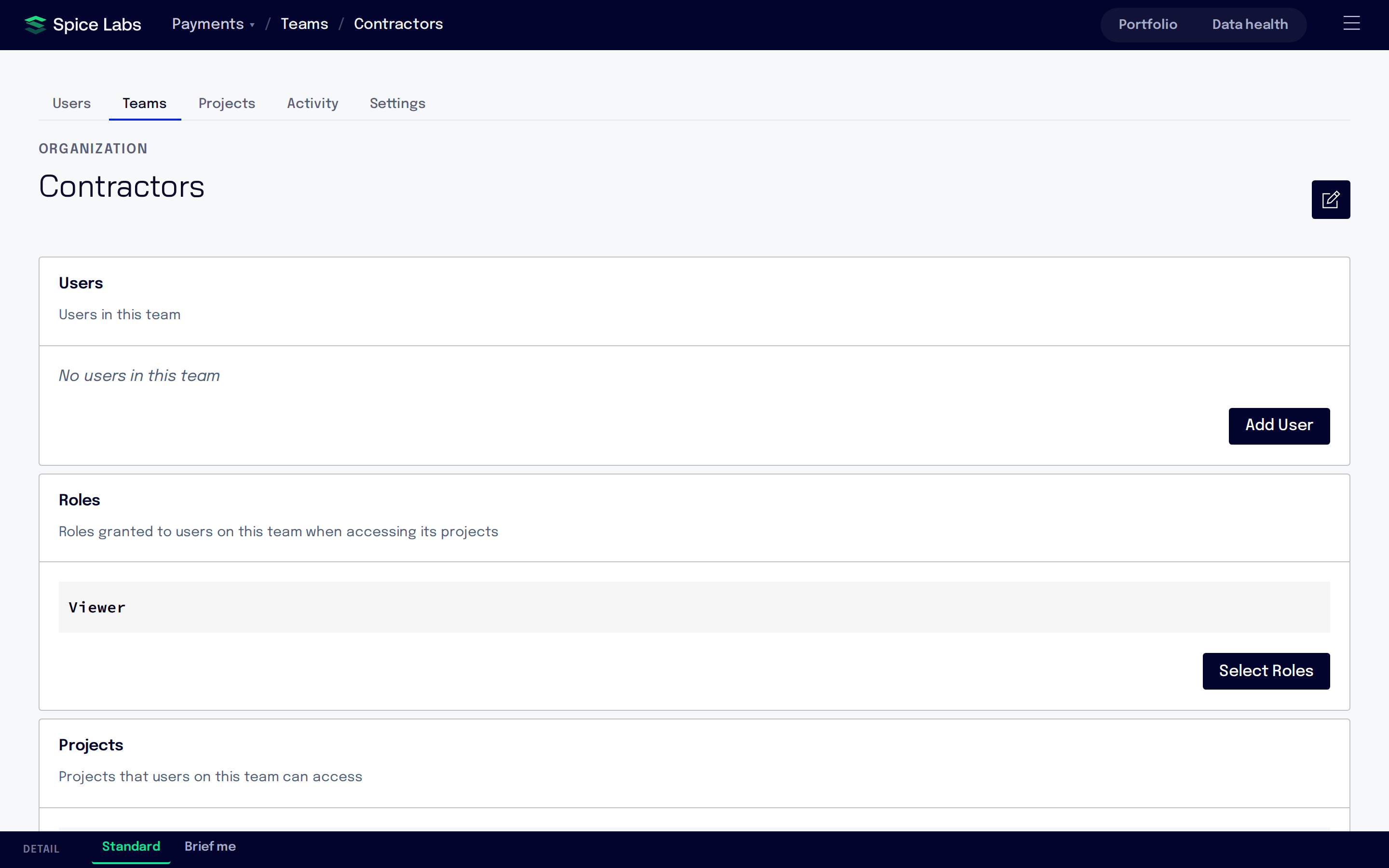
Choose the team’s name to open its page.
-
Choose its roles
In the Roles section, choose Select Roles. Tick one or more roles (each shows its permission ids) and choose Save.
-
Choose its projects
In the Projects section, choose Select Projects. Pick All Projects (“The team will have access to all projects including future ones.”) or Selected Projects and tick the projects. Choose Save.
-
Add people
In the Users section, choose Add User (below).
A team needs at least one role and at least one project before it gives its members any project access. A team with roles but no projects grants only its roles’ organization permissions, such as reading the users list.
Manage a team
The Teams page lists each team with its Roles, the number of Users, and its Projects (“All” for a team that reaches all projects). Choose a team to open its page, which has three sections:
- Users: the people on the team, with Email and Name
- Roles: “Roles granted to users on this team when accessing its projects”
- Projects: “Projects that users on this team can access”
Add people to a team
-
Open the dialog
On the team page, choose Add User. The Add or Invite Users dialog opens.
-
Pick people or type an email
Search for people already in the organization, or type the email address of someone new. An address not yet in the organization appears as “Invite:” followed by the address.
-
Add
Choose Add. People already in the organization join the team at once. People you invited receive an invitation and join the team when they accept it. See Users.
Remove people from a team
On the team page, choose Remove user on the person’s row and confirm with Remove. They stay in the organization and on their other teams. You can also do this from the person’s page: see Users.
Rename or delete a team
- To rename a team you created, choose Rename team (the pencil next to its name), enter the new Team name and choose Save.
- To delete a team you created, choose Delete team on its row in the Teams list and confirm with Delete. Its members stay in the organization but lose whatever only that team gave them. A deleted team cannot be restored.