Topographer
Spice Passes and credentials
A Spice Pass is the credential the Surveyor CLI uses to upload surveys to a project. API tokens let scripts and tools call the Spice Labs API. Both live on the project’s Credentials page, together with sign-ins and connected AI assistants, and you can revoke any of them there.
The Credentials page
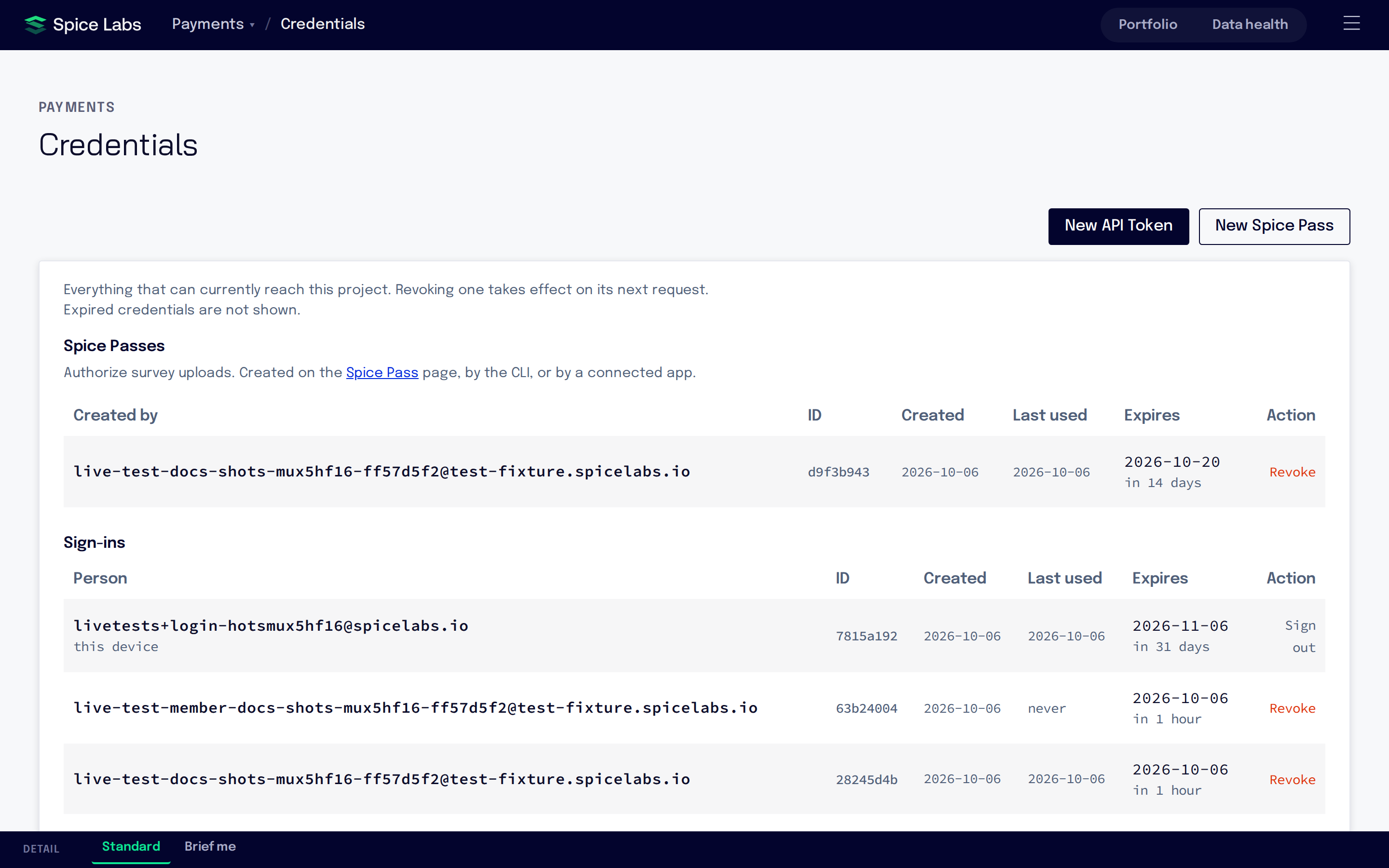
Open the menu (☰) and choose Credentials. The page lists everything that can reach this project, in four sections. A section appears only when it has something in it, and expired credentials are not shown.
| Section | What it lists |
|---|---|
| API tokens | Tokens for scripts and tools: name and creator, ID, how many permissions, created, last used, expiry. |
| Spice Passes | Credentials that upload surveys: who created each, ID, created, last used, expiry. |
| Sign-ins | People signed in to the dashboard on this project. Your own is marked “this device”. |
| Connected apps | AI assistants and other apps you connected to Spice Labs, with what each is allowed to do. |
The New API Token and New Spice Pass buttons are at the top of the page.
Generate a Spice Pass
-
Open the Spice Pass page
On the Credentials page, select New Spice Pass. The page that opens is headed Generate a Spice Pass. Step 1 of the Survey setup page offers the same choices.
-
Choose how long it lasts
Pick a value under Expires in: 1 day, 1 week, 2 weeks, 1 month, 90 days, 180 days or 1 year. The default is 2 weeks. A Spice Pass stays valid through the end of its last day in your time zone.
-
Select Generate
A dialog shows the Spice Pass and the date it is Valid until.
-
Copy or download it
Select Copy, or Download to save it as a
.jwtfile. Keep it somewhere safe, such as your CI system’s secret store.
You can generate a new Spice Pass at any time, so a short lifetime costs little. An AI assistant you connect can also create a Spice Pass for you, valid for 48 hours (Connect an AI assistant).
What a Spice Pass is
A Spice Pass is one string that carries everything the CLI needs to upload: a token, the project’s public key, which encrypts your survey data on your machine before it leaves, and the upload address. Each Spice Pass belongs to one project and cannot be used with another.
A Spice Pass only uploads surveys. It cannot read results or call the rest of the API; use an API token for that.
To use it, set it as the SPICE_PASS environment variable where the CLI runs. Install the Surveyor CLI shows how on each system.
Create an API token
-
Open the form
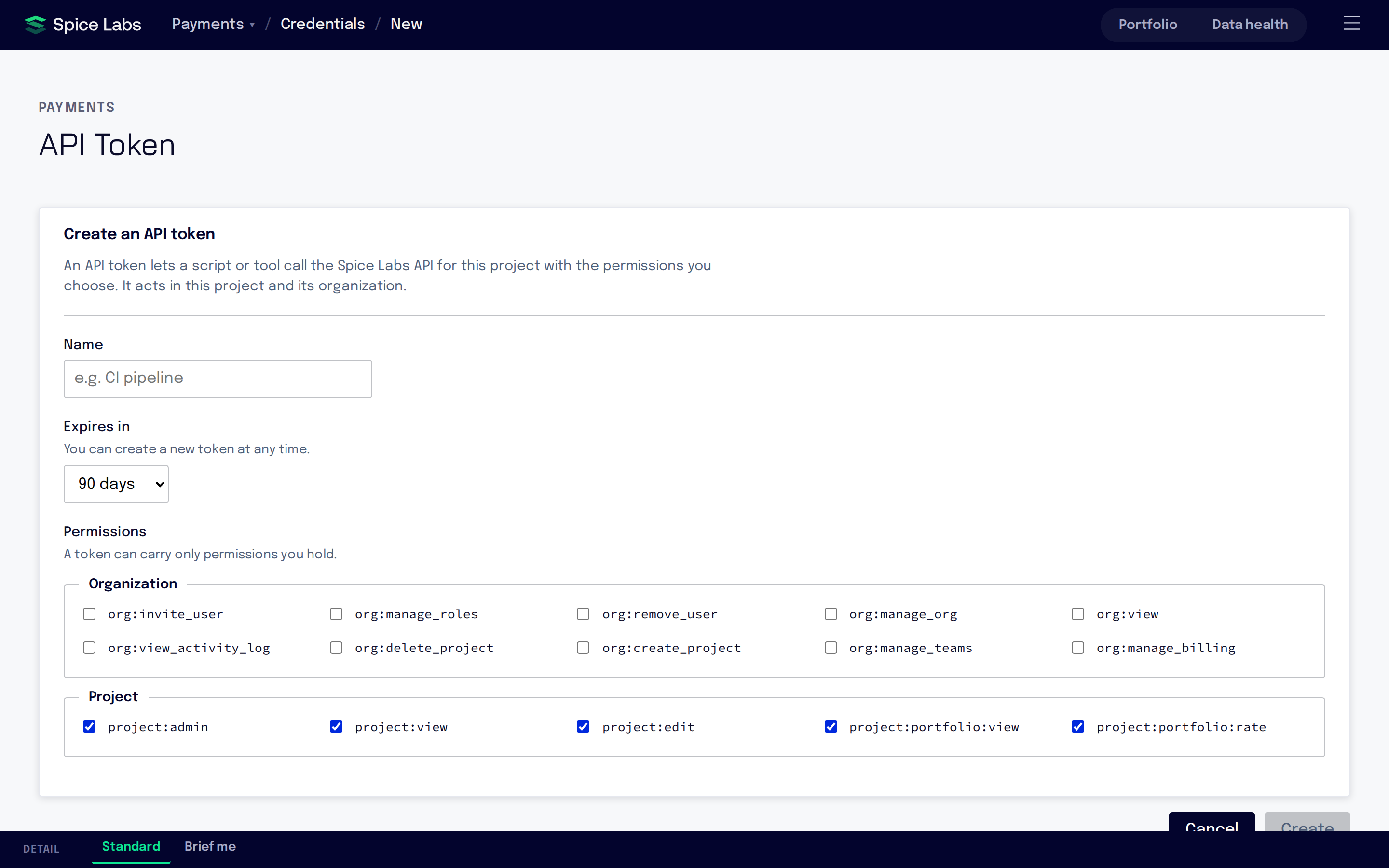
On the Credentials page, select New API Token. The form is headed Create an API token.
-
Fill in the fields
- Name: something that says where the token is used, such as “CI pipeline”.
- Expires in: 1 day, 7 days, 30 days, 90 days, 180 days or 1 year. The default is 90 days.
- Permissions: tick what the token may do, under Organization and Project. Each permission is shown by its id, such as
project:view. A token can carry only permissions you hold. All your project permissions are ticked at first.
-
Select Create
A dialog shows the token and the date it is valid until.
-
Copy or download it
Select Copy, or Download to save it as a text file, then Done. The token is shown once and cannot be recovered.
An API token works in this project and its organization. Send it to the API at https://api.spicelabs.io, as described in REST API. The API reference in the dashboard (menu ☰, API) also has a Create API token button, and an operation you lack permission for offers Create an API token for this, with just that permission ticked.
Revoke a credential
Select Revoke on the row and confirm. Revoking takes effect on the credential’s next request: a script, a CLI upload or a person using it loses access then.
- Revoking a sign-in signs that person out of this project on their next request.
- Your own sign-in shows Sign out instead of Revoke. To end it, sign out from the menu.
Connected apps
When you connect an AI assistant to Spice Labs, it appears under Connected apps with its name, what it is Allowed to do, when it connected and when it was last used. Each connected app acts as you in this organization, within what you allowed it. Connected apps belong to you and the organization, so the same list appears in every project.
Select Disconnect to stop an app immediately. Disconnecting also cancels the API tokens and Spice Passes the app created. To connect an assistant, see Connect an AI assistant.
What view-only members see
Only people who can edit a project see its credentials. A member with view-only access sees just the apps they connected themselves, under Connected apps, and no New API Token or New Spice Pass buttons.
Sample projects cannot generate a Spice Pass. Create a project of your own to upload surveys.