Topographer
Data health
Data health is the page for whoever wires surveys into builds and pipelines. It shows whether surveys are arriving, whether they finish, and how current each subject’s data is. Select Data health on the top bar to open it.
The status dot
The dot beside Data health on the top bar sums up the project in one state. Screen readers announce the same words.
| State | What it means |
|---|---|
| data flowing | Surveys are arriving. If subjects have a regular rhythm, all of them are on schedule. |
| subjects overdue | One or more subjects are past their expected next survey, or have not been surveyed recently. |
| needs attention | A survey failed, or a survey is taking longer than expected. |
A subject’s expected next survey comes from its own rhythm: a subject surveyed on every nightly build is overdue sooner than one surveyed each release. A subject without an established rhythm is never overdue.
The figures at the top
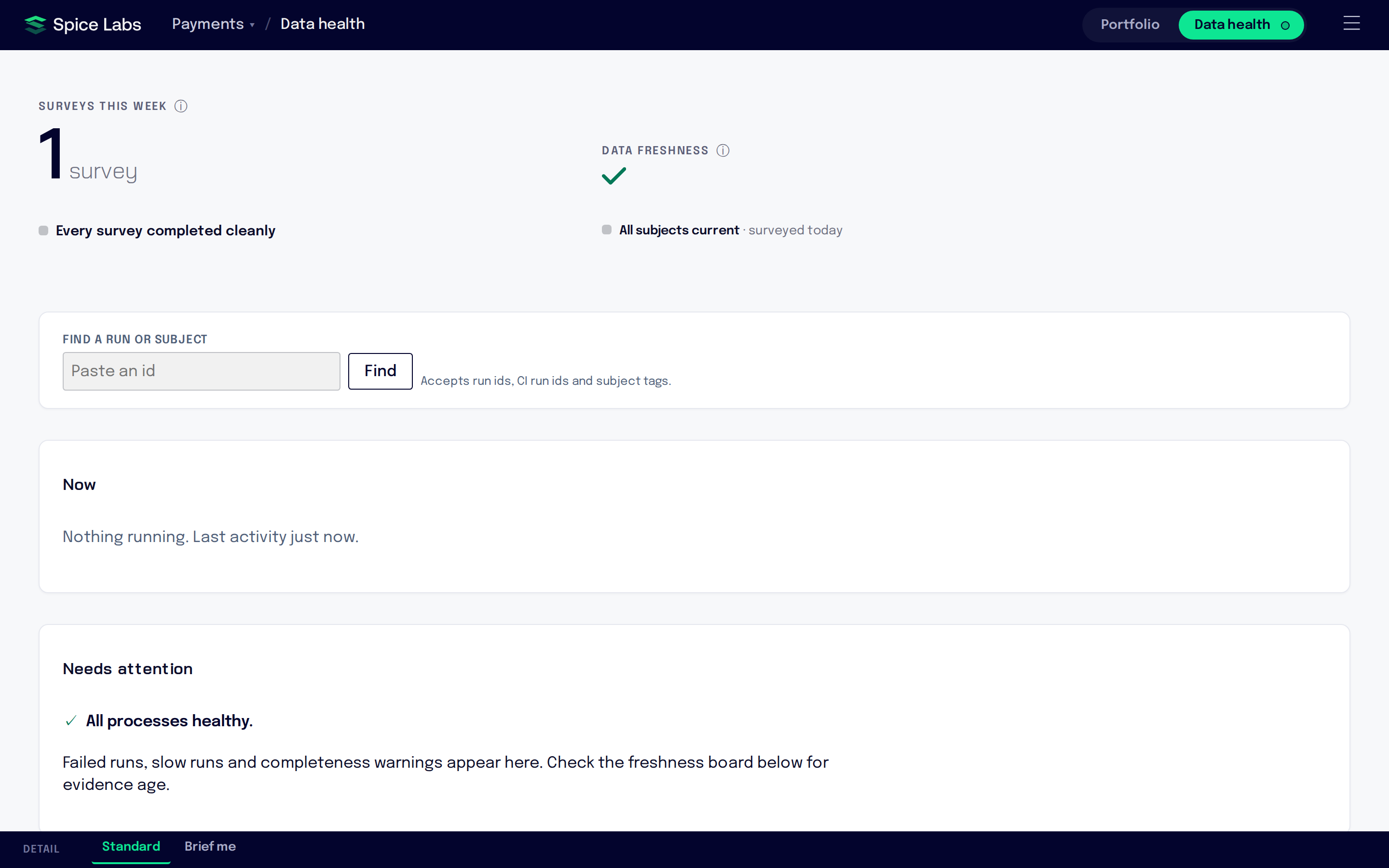
- Surveys this week: surveys started in the last seven days, and how many of them failed.
- Data freshness: how long since the least recently surveyed subject was surveyed. Portfolio scores are only as fresh as their stalest input, so this shows the longest gap.
To jump to one run or subject, paste its id into Find a run or subject. It accepts run ids, CI run ids and subject tags.
Now
A live view of the surveys in progress. Rows update as each step reports progress.
Needs attention
Failed runs, slow runs and completeness warnings, each marked Critical, Warning or Note, with the next thing to do. When there is nothing to report it says “All processes healthy.”
Subject freshness
One row per subject: Subject, Evidence (which kinds of survey it has, such as inventory or runtime), Last observed, Latest run, Items and Identified bytes. A subject whose surveys have aged is marked stale. If one kind of survey stops arriving for a subject, that evidence is marked “stopped”.
Run history
Every survey run in the project, newest first. Filter with All, Running, Failed, Completed or Deleted. Each row shows Subject, Evidence, Version, Status, Started and Last update.
Select Detail on a row to see each step’s status and timing, and a Completeness panel: the items in the run, the identified bytes, what was encountered but not read, and how many items were processed.
Tick rows to act on several at once:
- Compare selected opens the comparison of two surveys (Surveys and reports).
- Delete n selected deletes surveys. People with the Admin or Member role can do this.
- Restore n selected brings deleted surveys back. Show them with the Deleted filter first.
Select Older runs at the bottom to page back. When the project has no runs yet, the page says “Set up the CLI to send your first evidence.” and the Survey setup page has the steps.
Activity
Recent activity in this project. If you can see the organization’s activity log, Full activity log opens it (Administration).