Topographer
Surveys and reports
Every survey the Surveyor CLI uploads lands in a project and produces reports: a post-quantum readiness report and a cryptography bill of materials (CBOM). You can open them from the survey, from the list of reports, or from a finding on the Portfolio.
Find a survey
Open the menu (☰) and choose Surveys. The list shows each survey’s Type, Subject, Version, Started, Updated and Status. When the project has more than one kind of survey, buttons above the list filter by type, such as Inventory and Runtime.
Select a survey to open its page. It shows the survey’s type, date, subject and status, a Survey facts card, and the progress of its phases: Analyze, Upload and Index. Under Reports is a card for each report the survey produced; select View report → to open one. Reports appear as the survey completes.
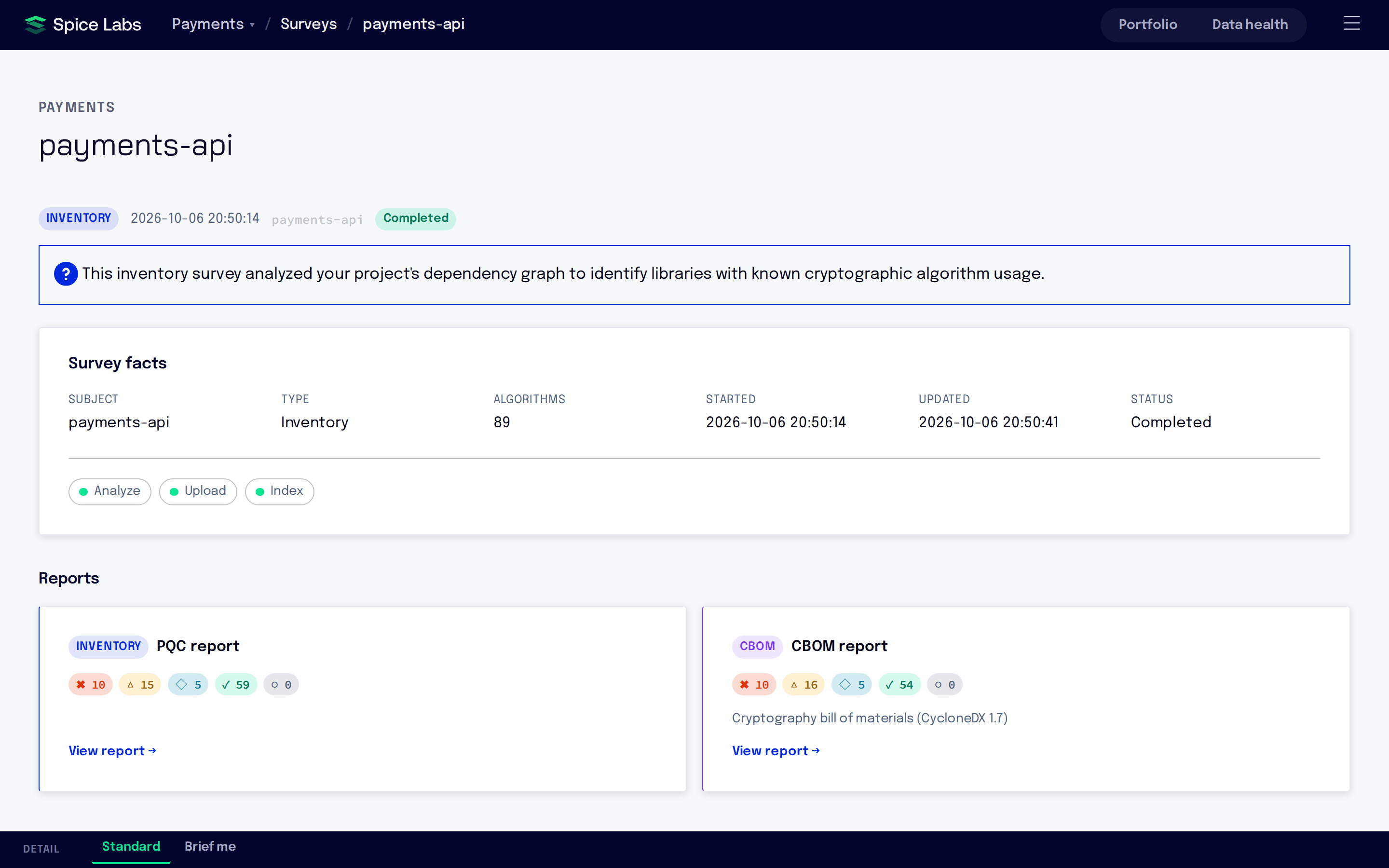
You can also reach a survey from Data health run history, and a report from Report ↗ on a row of the Portfolio’s What to fix next list.
Report types
Open the menu (☰) and choose Reports to list every report in the project, with buttons to filter by type. The dashboard names the types:
| Type | Produced by | What it is |
|---|---|---|
| PQC Inventory | An inventory survey | The cryptography present in your artifacts, classified for post-quantum readiness. |
| PQC Runtime | A runtime survey | The cryptography your application ran, plus what the instrumented JVM did. |
| PQC Static | Static analysis, available in Surveyor IT and Surveyor IT Pro | The cryptography the code calls, classified the same way. |
| CBOM | Each survey | A cryptography bill of materials in CycloneDX 1.7. |
| Combined CBOM | An inventory survey and an anchored runtime survey of the same artifact | One CBOM that marks each asset as present, confirmed running, or seen only at runtime. |
Post-quantum readiness reports explains the classification. CBOMs explains the combined CBOM and how to get one.
When a survey has more than one report, tabs at the top of the report switch between them: PQC, CBOM and Combined CBOM.
Export a report
On a report, open Export and choose a format.
| Report type | Formats in Export |
|---|---|
| PQC Inventory | PDF, JSON |
| PQC Runtime, PQC Static | PDF, XLSX, CSV, HTML, PPTX, JSON |
| CBOM, Combined CBOM | PDF, HTML, Excel, CSV, PowerPoint |
A CBOM also has a Download .cdx.json button for the CycloneDX document itself, the file to hand to other CBOM tools.
The Export menu lists only the formats that have finished rendering for that report, so a report that is still rendering, or an older one, may offer fewer. Portfolio Posture Reports have their own downloads (Portfolio).
Compare two surveys
Compare shows what changed between two surveys of the same application, for example two releases. Inventory, runtime and static surveys can be compared.
- On a report, select Compare and choose another completed report of the same subject.
- Or, on the Surveys page, tick two completed surveys and select Compare.
- Or, in Data health run history, tick two runs and select Compare selected.
The comparison counts what was Added, Removed, Improved, Regressed, Reassessed and Unchanged, and lists the regressed, added, removed and improved entries, and those whose assessment changed. Survey each release and the comparison shows remediation progress over time.
Refresh a stale report
Spice Labs improves its analysis engine, its algorithm catalog and its report formatting over time. When an improvement affects a report you already have, the report says so in a banner, for example “Analysis engine v4 is available.” Select Refresh report to build the report again from the stored survey. You do not need to survey again.
- The version badge on a report, which shows the version number and date, opens a list of the report’s versions, marked current and latest. People who can edit the project also see Generate new version there.
- When you open an older version, the report says “A newer version of this report is available.” Select View latest to go to it.
Refresh report and Generate new version are available to people with the Admin or Member role.
Delete and restore surveys
On the Surveys page, tick surveys, open the options menu (⋯) and choose Delete selected. To see deleted surveys, choose Show deleted surveys in the same menu. Deleted rows carry a Deleted badge, and Restore selected brings them back.
People with the Admin or Member role can delete and restore surveys. You can do the same from Data health run history.